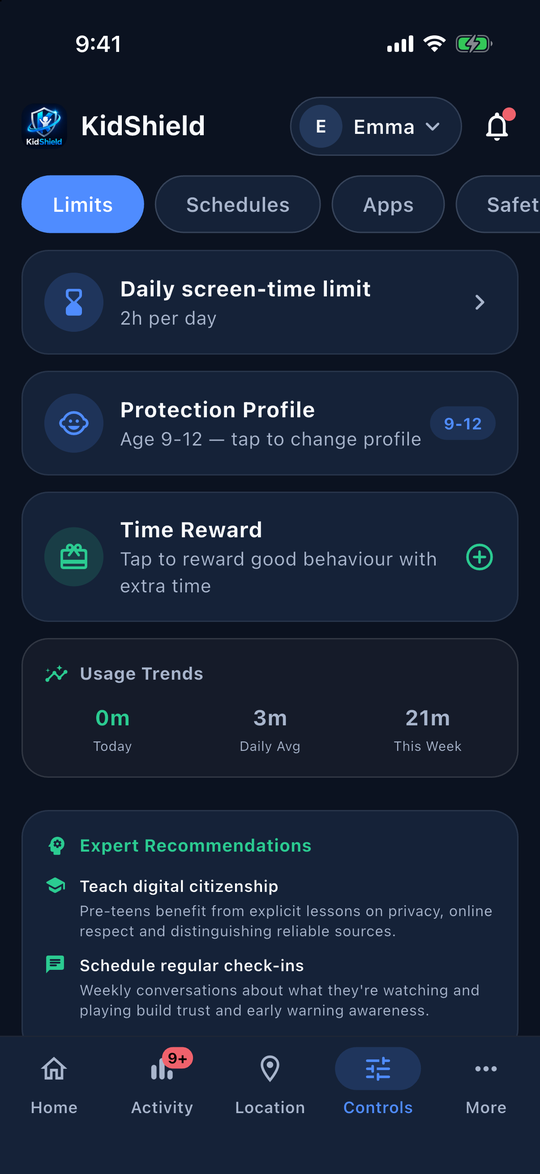
The Parent Dashboard is your command centre. Open KidShield on your phone and you'll see your child's real-time status at a glance.
Parent Home — child status, screen time, quick actions
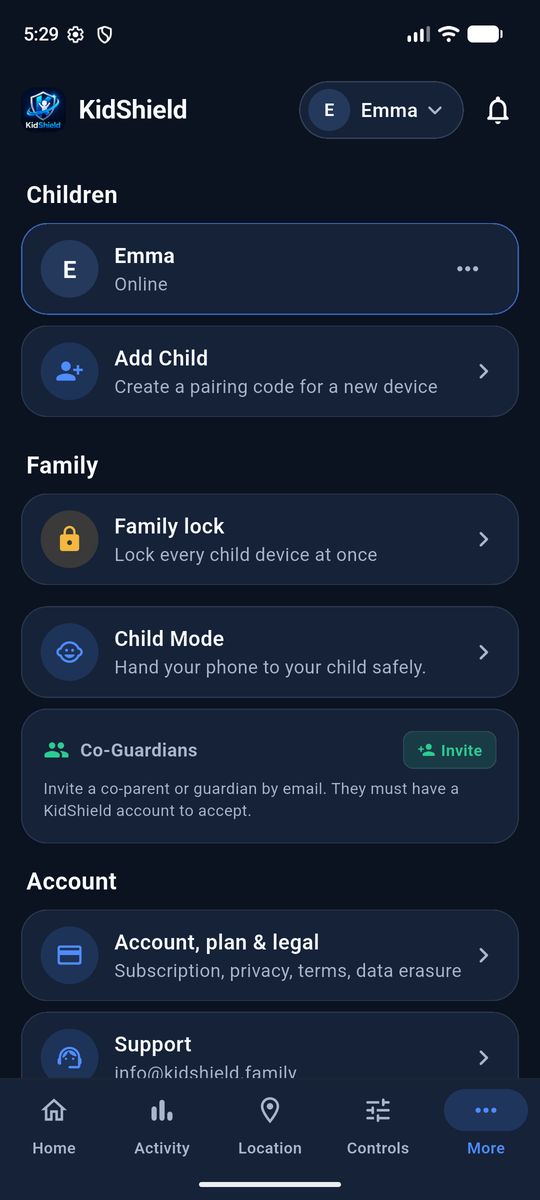
More — children, family lock, account and support
A bar at the bottom of the screen takes you everywhere: Home, Activity, Location, Controls and More.
Child switcher: Tap your child's name at the top right (e.g. "Emma") to switch between children or add one.
Child status: See at a glance whether your child is online, when they were last seen and which device they use.
Screen time card: A ring shows time used and remaining today. Tap Set limits to cap daily screen time.
Quick actions:Lock device, Pause internet, Add time and View location — one tap each.
Requests: When your child asks for more time, a card appears at the top of Home. Tap it to approve or decline.
Activity: Alerts and events, grouped so repeated events show once ("App blocking switched off · 4 times"). Emergencies are highlighted in red with Acknowledge and View location.
Add Child: Open the child switcher (or the More tab) and tap Add Child to generate a 6-digit pairing code.
Tip: KidShield keeps your parent app active in the background and sends a heartbeat every 5 minutes so the child's device always knows you're connected.
♿ 2. Accessibility Service Required
KidShield's app-blocking and message monitoring works through Android's Accessibility Service. This must be enabled on the child's device for KidShield to function.
⚠️ Important: If Accessibility is disabled, KidShield cannot block apps or monitor messages. The child can freely open any blocked app.
Child on iPhone or iPad? KidShield works without Family Sharing, but a child can switch off Screen Time access in iOS Settings. For the strongest protection, add your child to Family Sharing and set a Screen Time passcode on their device. On Android, Device Admin makes removal much harder. Message Monitoring is available on Android only.
How to Enable (Child's Device)
Open Settings on the child's device.
Tap Accessibility (on Samsung: Settings → Accessibility → Installed apps).
Find KidShield in the list and tap it.
Toggle Use KidShield to ON and tap Allow on the confirmation popup.
⚙️ Settings → Accessibility
Downloaded apps
🛡️ KidShieldON ✓
TalkBackOFF
Accessibility → KidShield enabled
🛡️ KidShield
KidShield uses Accessibility to monitor app usage and enforce screen time limits.
Use KidShieldON
Toggle KidShield ON
What Accessibility Allows KidShield to Do
🚫 App Blocking
Redirects the child back to the home screen when they open a blocked or time-limited app.
💬 Message Monitoring
Reads visible text in WhatsApp, Instagram, and other messaging apps to detect harmful content.
🔒 Screen Lock
Enforces the lock screen when screen time limits are reached or when you tap "Lock device."
📲 Install Approval
Intercepts Play Store installs and asks you to approve or deny before the app is downloaded.
Privacy Note: KidShield only reads text in approved messaging apps and only when the child's device screen is on. No audio, camera, or location data is accessed through Accessibility.
🌐 3. Web Filter & VPN Protection
KidShield uses a local VPN profile powered by Cloudflare for Families to block adult content, gambling, and malware at the DNS level — before pages even load. This is not a paid VPN subscription; it's a free, privacy-respecting DNS filter.
Web Filter
Cloudflare for Families active — blocking adult content & malware
Web FilterON
Web Filter toggle in Controls → Safety
How to Enable / Disable
Open the Controls tab and select your child at the top right.
Tap Safety, then find the Web Filter card.
Toggle the switch ON to activate Cloudflare DNS filtering on the child's device.
The child's device will show a key icon in the status bar — this is the VPN indicator.
⚠️ VPN Tamper Alert: If your child manually disables the VPN, KidShield will immediately notify you with a sound alert and automatically restart the VPN on their device.
What Gets Blocked
🔞 Adult Content
All pornographic and adult websites are blocked at the DNS level, across all browsers and apps.
🦠 Malware & Phishing
Malicious domains, phishing sites, and known malware servers are blocked automatically.
🎰 Gambling
Online gambling sites are filtered by Cloudflare's family-safe DNS policy.
✅ Safe Browsing
Educational sites, YouTube, Maps, and other safe content work normally without any slowdown.
Note: The Web Filter works on the child's mobile data and Wi-Fi connections. It does not slow down browsing speed — DNS filtering happens in milliseconds.
📱 4. Screen Time & Schedules
Set healthy daily limits and automatic routines that enforce themselves — no manual intervention needed.
Setting a Daily Limit
Open the Home tab and pick your child.
In the Screen time card, tap Set limits (or go to Controls → Limits).
Choose a time (e.g. 2 hours).
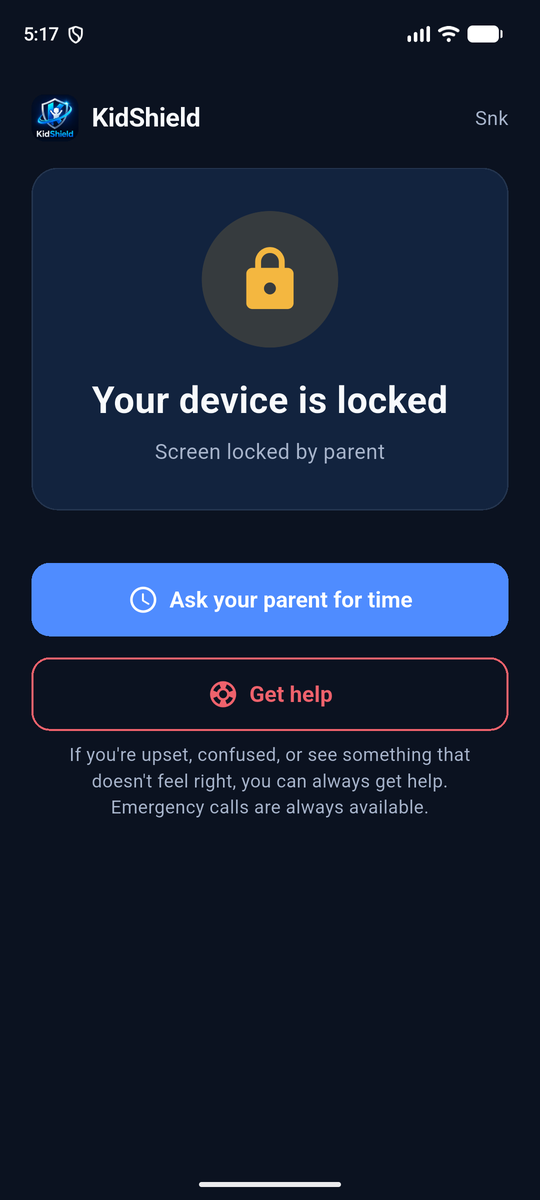
When your child reaches the limit, their device locks and shows "Your device is locked" with an Ask your parent for time button.
Child's screen when locked
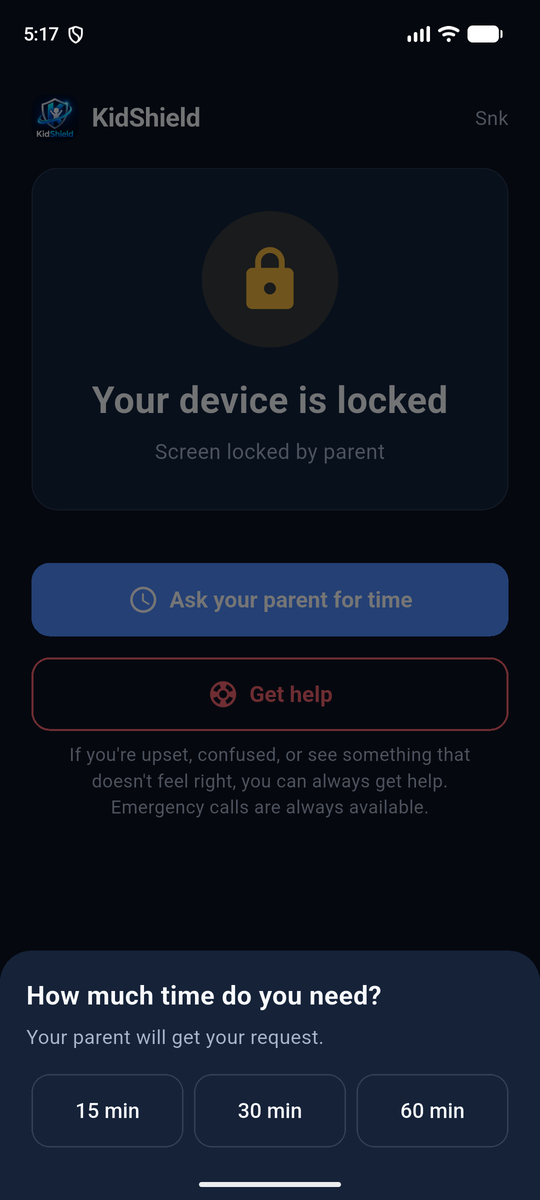
Child chooses 15, 30 or 60 minutes
Your child's request appears on your Home and Activity tabs. Tap Approve and their device unlocks with the extra time, or tap Deny.
Schedules
Create named schedules that lock or restrict the device automatically:
🏫 School Mode
Locks social media and games during school hours. Education apps remain accessible.
🌙 Bedtime
Fully locks the device at a set time each night so kids get proper sleep.
🎮 Free Time
Temporarily lifts restrictions for weekends or holidays with a scheduled end time.
⏳ 5. "Ask for More Time" Requests
When the device is locked, your child can tap a button to request extra screen time. You decide whether to approve or deny.
Child taps Ask your parent for time and picks 15, 30 or 60 minutes
🔔 KidShield
Emma is asking for 30 more minutes. Tap to approve or deny.
ApproveDeny
Parent sees a request card on Home and in Activity
Child taps Ask your parent for time on the locked screen, then 15, 30 or 60 min.
You receive a push notification with sound on your phone.
Open KidShield — the request appears at the top of Home and in Activity. Tap it to review.
Tap Approve — the child's device unlocks immediately.
Tap Deny — the child sees a "Request denied" message.
✅ When you approve: The lock clears instantly on the child's device. The granted time is added to their remaining screen time for the day.
🤖 6. Message Monitor & AI Visual Shield (coming soon)
AI Visual Shield
Coming soon. We are building an on-device AI that will detect explicit images and blur them before your child sees them. It is not active in the current app — today KidShield protects with web filtering, app blocking and Message Monitoring.
Privacy First: All AI processing happens on the device. No images leave the phone.
Message Monitor
KidShield scans visible text in messaging apps for signs of cyberbullying, predatory behaviour, and self-harm. When something harmful is detected, you receive an alert immediately.
📱 WhatsApp
Both individual and group chats are monitored for harmful language.
📸 Instagram
Direct messages and visible captions are scanned in real-time.
👻 Snapchat
Text content visible on screen is captured and analysed.
💬 SMS / Messages
Standard text messages are also monitored for safety.
To Enable: Open Controls → Safety, find Message Monitor and toggle it ON. This activates message scanning on the child's device through the Accessibility Service.
📍 7. Safety, Location & SOS
Live Location Tracking
Open the Location tab at the bottom of the parent app.
Your child's current position appears on the map with a live marker.
Tap Location History to see where they've been today.
Geo-Fencing
Set safe zones (Home, School) and get notified the moment your child enters or leaves those areas.
"Get help" Button
If your child feels unsafe or upset, they tap Get help on their screen and confirm. The button is outlined in coral so it is easy to find but never alarming.
You receive a high-priority Emergency SOS notification immediately.
Open Activity to see the alert, then tap Acknowledge or View location.
Tap the notification to see their exact GPS location.
🚨 Emergency calls are ALWAYS available — even when the device is fully locked. The Phone app is hardcoded as always-accessible so your child can dial 000/911 at any time.
🔓 8. Child Auto-Unlock Safety New
KidShield includes a built-in safety mechanism to prevent your child from being permanently locked if your parent app becomes unavailable.
How It Works
While the KidShield parent app is open on your phone, it sends a heartbeat signal to your child's device every 5 minutes. This tells the child's device that a parent is actively monitoring.
Parent App
✅ Active Heartbeat every 5 min
→
Child Device
🛡️ Protected Parent connected
Heartbeat keeps child device informed
Auto-Unlock Trigger
If no heartbeat is received for 24 hours while the device is locked, KidShield automatically unlocks the child's device. This protects against:
Parent accidentally uninstalling the app while device is locked
Parent's phone being lost or broken
Account access issues preventing the parent from logging in
✅ Child Safety First: No child will ever be permanently locked out of their device due to a technical issue on the parent's side.
For parents: Simply keep the KidShield app installed on your phone. As long as you open it occasionally (at least once every 24 hours), the heartbeat stays active and nothing changes.
📡 9. What Happens When Your Child's Phone Goes Offline?
KidShield is built to keep protecting your child even when the internet goes down — on an aeroplane, in a dead zone, or if a child deliberately turns off Wi-Fi. Here's exactly what keeps working and what needs connectivity.
✅ Good news: All the critical protections — app blocking, screen locks, schedules, and calls — work completely offline. No internet is ever required for your child to be protected.
✅ Works with no internet at all
🔒
Screen lock & device lock Once locked, stays locked. The lock state is stored on the device itself — no internet needed to keep it active.
📅
Schedules (Bedtime, School Mode) Schedules run entirely from a local cache on the device. Bedtime will still lock at 9:30pm even with no Wi-Fi or mobile data.
🚫
App blocking KidShield's blocked app list is cached locally. Blocked apps remain blocked with no internet.
📞
Emergency calls & Settings Phone and Settings are always accessible — even fully locked, even offline. This is hardcoded and cannot be removed.
🌐
Web filter (adult content blocking) The Cloudflare DNS filter runs locally on the device. It continues blocking adult content, malware and gambling sites even offline.
📊
Screen time counting Screen time is tracked locally. When your child reconnects, the total automatically syncs to your parent dashboard.
🤖
AI Visual Shield (coming soon) Not active yet. When released, all image analysis will run on-device.
⏳ Queued — sent to you as soon as connectivity returns
🔔
Safety alerts (harmful messages, app blocking disabled, etc.) KidShield detects these offline. The moment your child's phone reconnects, the alert is sent to your phone immediately.
⏱️
"Ask for more time" requests Your child can still tap the request button while offline. The request reaches you the moment connectivity is restored.
📍
GPS location updates Location cannot be shared without internet. Your parent dashboard will show the last known location with a timestamp until connectivity is restored.
🔓 The 24-hour auto-unlock safety rule
Your parent app sends a quiet heartbeat signal to your child's device every 5 minutes. If that signal goes missing for 24 hours while the device is locked, the child's device will automatically unlock.
This is a deliberate safety feature — it means if your phone is lost, stolen, or broken, your child will never be permanently locked out of their device.
📵
Child offline a few hours
✅ Lock holds
|
🌙
Overnight offline (8–10 hours)
✅ Lock holds
|
📅
24+ hours offline while locked
⚠️ Auto-unlocks
For normal use (overnight Wi-Fi off, travel, dead zones) — the lock always holds
💡 Tip: Simply open the KidShield parent app once a day. That resets the heartbeat timer, so the 24-hour threshold never triggers during normal use.
🗑️ 10. Uninstalling KidShield
⚠️ Note: KidShield uses Device Administrator privileges to protect itself from being deleted without parental authorisation. Uninstalling requires a few extra steps.
Uninstalling from the Child's Device
The Settings app is always accessible on the child's device, even during a lock. Here's how to uninstall:
Open Settings on the child's device (always accessible, even when locked).
Go to Settings → Biometrics and Security → Device Admin Apps. (Samsung path. On stock Android: Settings → Security → Device Admin Apps)
Tap KidShield and tap Deactivate. Confirm when prompted.
Go back to Settings → Apps → KidShield.
Tap Uninstall and confirm.
⚙️ Device Admin Apps
🛡️ KidShieldActive
Deactivate
Step 1: Deactivate Device Admin
⚙️ Apps → KidShield
Version2.2.0
Storage86 MB
Uninstall
Step 2: Uninstall the app
Uninstalling from the Parent's Device
The parent app has no Device Admin restrictions. Simply go to Settings → Apps → KidShield → Uninstall as normal.
After uninstalling: The child's Firestore profile remains in the system. If you reinstall KidShield later, you can re-pair the child's device using the same parent account without losing their history.
🔧 10. Troubleshooting
Child's device stays locked after approving extra time
Ensure both parent and child apps are on the latest version (v2.2.0+).
Check your internet connection — approval is sent via the internet.
Wait up to 10 seconds for the unlock to propagate.
If still locked, tap Lock device then Unlock device on the Home tab of the parent app to manually override.
Notification has no sound
Check your phone is not on Silent or Do Not Disturb mode.
Go to Settings → Apps → KidShield → Notifications and ensure KidShield Alerts channel has sound enabled.
If the channel shows "No sound," delete it and reinstall the app to recreate with correct settings.
App list is missing apps (Facebook, Temu, etc.)
This was fixed in v2.2.0+51. Update KidShield on the child's device.
After updating, open KidShield on the child's device — the app list syncs automatically on startup.
VPN / Web Filter not starting
Open Settings → VPN on the child's device and check if KidShield VPN is listed.
If it shows as disconnected, toggle the Web Filter OFF then ON again in the parent dashboard.
Make sure the child granted VPN permission when prompted during setup.
Accessibility service keeps turning off
Some battery optimisation settings on Samsung/Xiaomi automatically kill background services.
Go to Settings → Battery → App Power Management and set KidShield to Unrestricted.
Also go to Settings → Apps → KidShield → Battery and select Unrestricted.
Child appears connected but no data is updating
Check that the child's device has internet access.
Restart the KidShield app on the child's device.
If the issue persists for 24 hours, try re-pairing the child's device using a new pairing code (More → your child → Generate New Pairing Code).
Still stuck? Email us at info@kidshield.family with your child's device model and Android version. We respond within 24 hours.
 KidShield